In this article (3 sections)
What changed in Chrome?
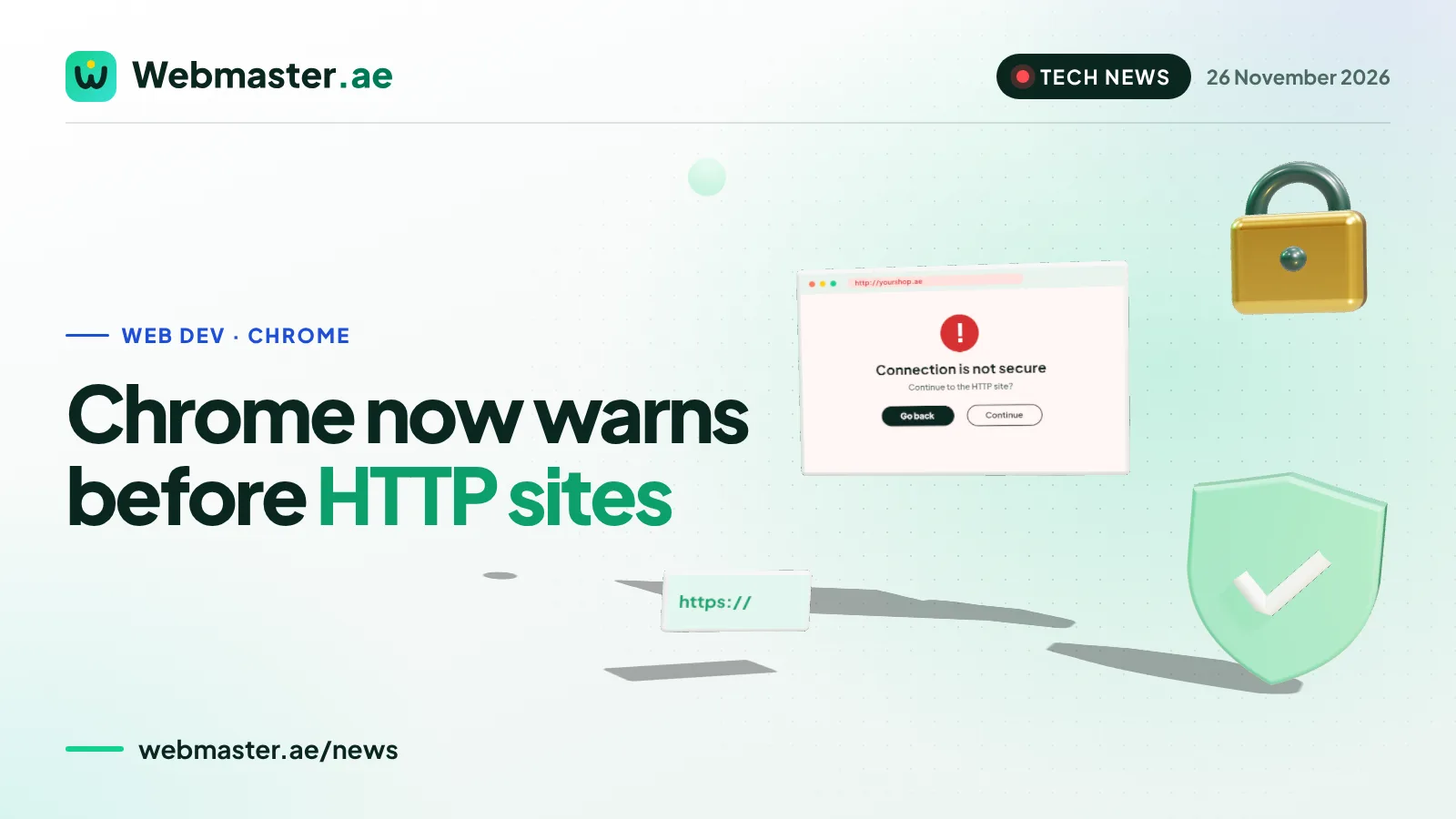
Chrome has a setting called "Always Use Secure Connections". When it's on, Chrome tries to load every site over HTTPS first. If a site doesn't support HTTPS, Chrome shows a full-page warning and asks the visitor whether to continue to the insecure HTTP version. Google says it asks before the first visit to a public HTTP site, and avoids repeat warnings for sites someone uses regularly — so new visitors, the ones you most want to win, are the ones who see it.
Google announced on 28 October 2025 that this would become the default. It first enabled it for people using Enhanced Safe Browsing in Chrome 147, then for everyone on public sites in Chrome 154, which reached the stable channel on 22 September 2026. Chrome moved to a two-week release cycle with Chrome 153, so new versions now arrive quickly.
Chrome 154
Default for public sites
22 Sep 2026
Stable release
28 Oct 2025
Google’s announcement
Private network addresses, such as office routers and local test servers, are treated differently, and companies can manage the behaviour on managed devices with the HttpsOnlyMode policy.
Why does it matter for UAE businesses?
Most UAE websites already use HTTPS, but warnings still appear in a few common places:
- QR codes on menus, shop windows and brochures printed with http:// links.
- Email signatures and old PDFs with http:// addresses.
- Subdomains like shop., booking. or old campaign pages without a valid certificate.
- Expired certificates on smaller sites where renewal isn't automatic.
- Ads and social profiles that still link to http://.
A warning page in front of a booking form or checkout costs customers. Many people won't click through a security warning — and they shouldn't have to.
How do you check and fix your site?
- 1
Type http://yourdomain.ae and http://www.yourdomain.ae and confirm both land on the HTTPS site without a warning
- 2
Run the domain through our redirect checker and make sure there's one 301 redirect, not a chain
- 3
Check every subdomain you use has a valid certificate that renews automatically
- 4
Open key pages, press F12 and look for mixed content warnings in the console
- 5
Check security headers such as HSTS with our HTTP headers checker
Links to update
0/6 done
If your site was quietly redirecting visitors somewhere unexpected, check our guide to warning signs that a website has been hacked.
Frequently asked questions
Which Chrome version warns before opening HTTP sites?
Chrome 154, released to the stable channel on 22 September 2026, turned on “Always Use Secure Connections” by default for public sites.
Will my website be blocked if it uses HTTP?
Not blocked, but visitors see a full-page warning and must choose to continue. Many won’t.
My site has HTTPS. Do I need to do anything?
Check that HTTP addresses redirect to HTTPS in one step, that all subdomains have valid certificates, and that old printed and shared links use https://.
What is mixed content?
An HTTPS page that loads images, scripts or forms over HTTP. Browsers block or warn about it, so update those resources to HTTPS.
Do QR codes need to be reprinted?
If your site works on HTTPS, Chrome upgrades an http:// QR link automatically and no warning appears. If it doesn’t, visitors see the warning, so fix HTTPS first and use https:// links when you next print.
Webmaster.ae
Get UAE tech news in your inbox
One short email a week: the UAE tech, AI, e-invoicing and Google updates that affect your business, and what to do about them.
Sources
- Chrome for Developers — Chrome 154 release notes
- Google Chrome Security — HTTPS by default
- PPC Land — Chrome enforces secure connections by default in October 2026
Rules and prices change. We review this article regularly; last checked 26 November 2026.
Webmaster.ae Editorial Team
Engineers, designers and marketers in Dubai. We design, build, host and grow websites, apps and AI automations for UAE businesses — and write about what we learn doing it. About us